
You published a new page on your website. You shared it, maybe even ran a quick check. But days pass, then a week, and when you search for it on Google -it simply does not exist.
No ranking. No impressions. No clicks. Just a blank void where your hard work should be showing up.
This is not a rare problem. It happens to brand new blogs, established e-commerce stores, news websites, and even pages on high-authority domains. And the worst part? Most people have no idea why it is happening or where to even begin looking.
Here is the truth -Google does not automatically index every page it comes across. It makes a deliberate decision. And if something in your setup is giving Google a reason to skip your page, it will skip it without sending you a single notification.
This guide is built to change that. You will learn exactly why Google ignores new pages, how to diagnose the problem yourself in under 15 minutes, and what to do to fix each issue -one by one. No generic advice. No fluff. Just the real reasons and real fixes that SEO professionals use every single day.
Whether you are a blogger who just launched a site or a marketing manager dealing with indexing drops on an enterprise website, this guide covers you completely.
Crawling vs. Indexing -They Are Not the Same Thing
This is the most important concept to understand before you start troubleshooting. Most website owners use “crawling” and “indexing” as if they mean the same thing. They do not. And that confusion leads people to look for solutions in the wrong places.
Let me break it down simply.
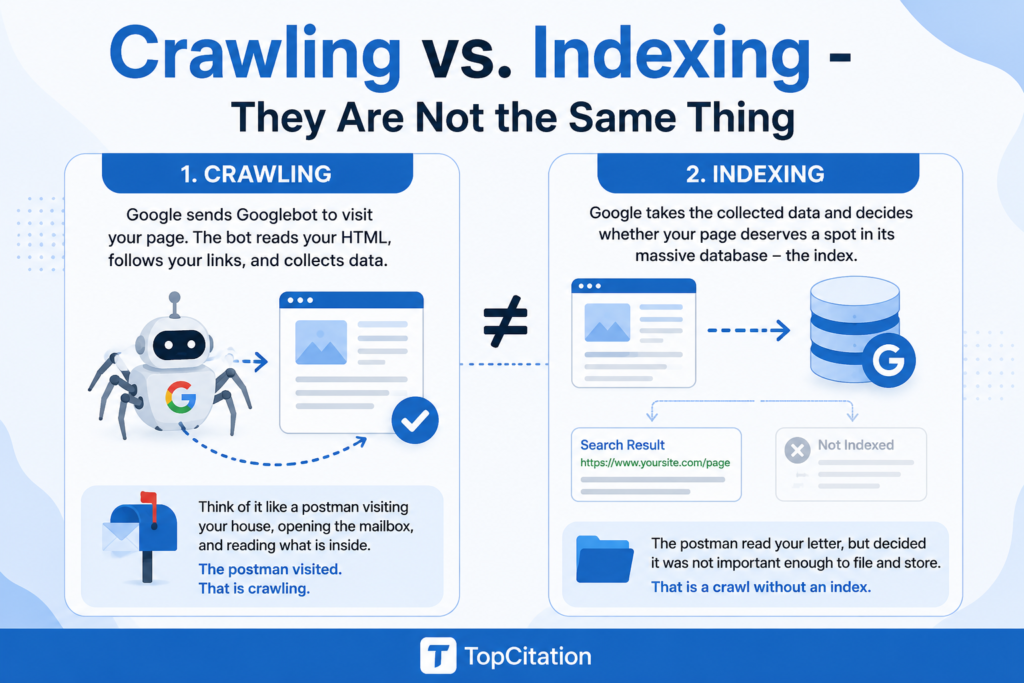
Crawling is when Google sends its bot -called Googlebot -to visit your page. The bot shows up, reads your HTML, follows your links, and collects data. Think of it like a postman walking up to your house, opening the mailbox, and reading what is inside. The postman visited. That is crawling.
Indexing is what happens after the visit. Google takes that collected data and decides whether your page deserves a spot in its massive database -the index. If it does, your page becomes eligible to appear in search results. If it does not, the page gets left out entirely. Going back to the analogy -the postman read your letter, but decided it was not important enough to file and store. That is a crawl without an index.
Here is what makes this critical for you -Google can crawl your page perfectly and still choose not to index it. In fact, when you go into Google Search Console and see statuses like “Crawled -currently not indexed” or “Discovered -currently not indexed,” that is exactly what is happening. Google visited. Google read. Google said no.
So when people say “Google is not finding my page,” they usually mean one of two things. Either Google has not crawled the page yet, or Google crawled it but chose not to add it to the index. These are two completely different problems with two completely different solutions.
Knowing which stage your page is stuck at is the starting point for every fix in this guide.
How Google Actually Discovers and Indexes Your Pages
Most people think publishing a page is enough for Google to find it. Hit publish, done. But Google does not work that way. There is an entire process happening behind the scenes and if any single step in that process breaks down, your page never makes it to search results.
Here is exactly how it works from start to finish.
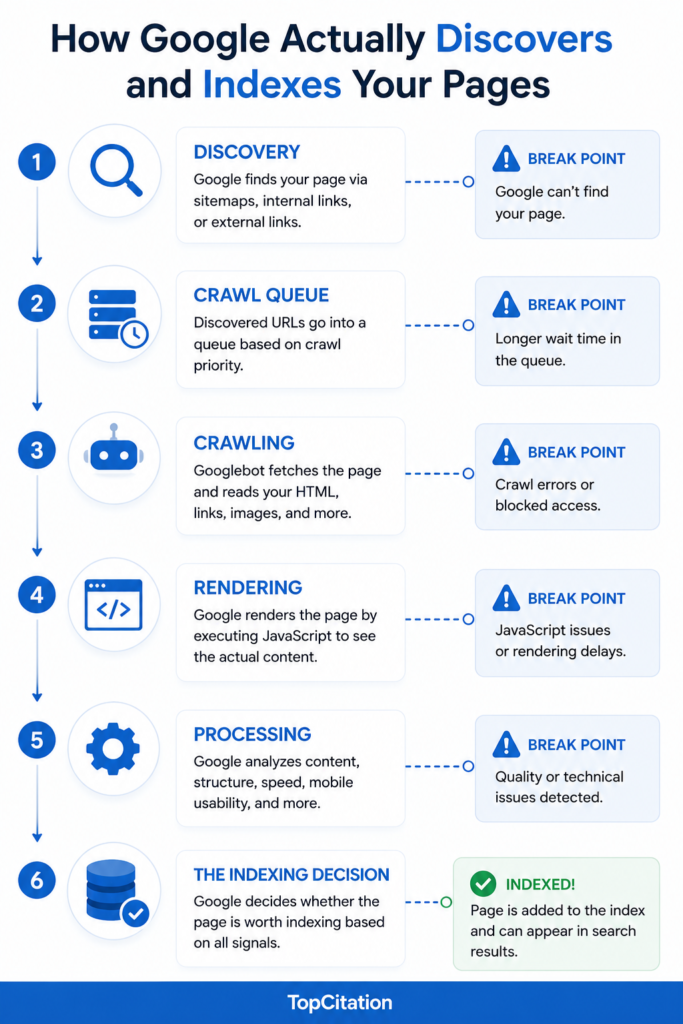
Step 1 -Discovery
Before Google can do anything, it needs to know your page exists. Google discovers new URLs in three main ways. First, through your XML sitemap if you have submitted one in Google Search Console. Second, through internal links -when Googlebot is already crawling your site and finds a link pointing to your new page. Third, through external backlinks -when another website links to your new page and Google crawls that site.
If none of these three things are in place, Google has no way of knowing your page exists. It is essentially invisible.
Step 2 -Crawl Queue
Once Google discovers your URL, it does not crawl it immediately. The URL gets added to a crawl queue -a waiting list. How long your page sits in that queue depends on how much crawl priority Google assigns to your site. A high-authority site like Forbes or HubSpot gets its pages pulled from the queue within hours. A brand new blog might wait days or even weeks.
Step 3 -Crawling
When your turn comes, Googlebot fetches your page. It downloads the raw HTML and starts reading -your headings, body text, meta tags, links, images, and any structured data you have added. This is the actual crawl.
Step 4 -Rendering
This step trips up a lot of modern websites. After downloading your HTML, Google needs to render the page -meaning it executes any JavaScript to see what the page actually looks like in a browser. If your page relies heavily on JavaScript to load its main content, Google has to wait and render it separately. This can delay indexing by days or even weeks.
Step 5 -Processing
Google now analyzes everything it collected. It looks at your content quality, your internal linking structure, your page speed, your mobile usability, your canonical tags, and dozens of other signals. This is where Google starts forming its opinion about whether your page is worth indexing.
Step 6 -The Indexing Decision
Based on everything it processed, Google makes a final call. Is this page unique? Does it add value? Is it technically clean? Is it trustworthy? If the answer to these questions is yes, the page gets added to the index and becomes eligible to rank. If the answer is no -or even maybe -Google can choose to leave it out.
Understanding this entire pipeline is what separates someone who blindly hits “Request Indexing” and hopes for the best from someone who actually diagnoses and fixes the real problem.
Related Post: Website Showing on Google But Getting No Clicks? Here’s How to Fix It
12 Real Reasons Google Is Not Indexing Your Pages
1. Noindex Tag Is on the Page
This is the number one reason pages do not get indexed and the most embarrassing one because it is entirely self-inflicted. A noindex tag is a direct instruction to Google that says “do not add this page to your index.” And Google listens. Every single time.
The noindex directive can appear in two places. Either in your page’s HTML head section as a meta tag like this:
<meta name=”robots” content=”noindex”>
Or it can be delivered through an HTTP response header. Both work the same way -they tell every search engine crawler to crawl the page but not index it.
Now here is where it gets interesting. This tag exists for legitimate reasons. Developers use it on staging sites, thank you pages, internal search result pages, and admin areas that should never appear in Google. The problem happens when someone forgets to remove it before going live, or when a CMS plugin like Yoast SEO or Rank Math accidentally applies it to pages it should not.
A real scenario that plays out constantly -someone builds a new website on a staging environment with noindex turned on for the entire site, which is correct practice. They then migrate to live and forget to flip that setting off. The whole site becomes invisible to Google and they spend weeks wondering why nothing is ranking.
How to fix it:
Open Google Search Console and run the URL Inspection tool on your page. If the page has a noindex tag, GSC will tell you directly under the “Indexing” section. You can also view your page source in any browser by pressing Ctrl+U and searching for “noindex” in the code. If you are using WordPress, check your SEO plugin settings both at the site level under “Search Appearance” and at the individual page level.
2. robots.txt Is Blocking Googlebot
If the noindex tag is a stop sign placed on the page itself, the robots.txt file is a barrier placed at the gate of your entire website. It is a plain text file that lives at the root of your domain -for example yourdomain.com/robots.txt -and it tells search engine crawlers which parts of your site they are allowed to visit and which parts they should stay away from.
When Googlebot arrives at your website, the very first thing it does before crawling anything is check your robots.txt file. If it finds a Disallow rule that covers your page or your entire site, it turns around and leaves without crawling a single URL that is blocked.
Here is what a problematic robots.txt looks like:
User-agent: * Disallow: /
That two line combination is one of the most dangerous things you can accidentally leave on a live website. It blocks every crawler from accessing everything. And just like the noindex situation, this is most commonly left over from a staging or development environment where blocking crawlers was intentional and correct.
But robots.txt blocking goes beyond just that extreme case. You might have specific folders blocked that contain pages you actually want indexed. For example a developer might block the /blog/ folder to keep drafts away from Google during development and then forget to remove that rule when the blog goes live.
There is also a very important nuance that many people miss. Blocking a URL in robots.txt does not guarantee Google will not index it. If another website links to that blocked page, Google can still discover the URL and index it based on that external signal alone -just without being able to read the content. This creates ghost pages in Google’s index with no title or description, which is a different kind of problem entirely.
How to fix it:
Go to yourdomain.com/robots.txt in your browser right now and read it carefully. Look for any Disallow rules that might be covering the pages you want indexed. If you find a problematic rule, remove it or narrow it to only block what you actually want blocked. After fixing the file, go to Google Search Console, open the robots.txt tester under the old Search Console tools, and test your specific URLs to confirm Googlebot can now access them.
📸 Image Suggestion: A screenshot of a robots.txt file in a browser with a highlighted Disallow rule blocking important pages, alongside a Google Search Console robots.txt tester showing the blocked status in red and allowed status in green after the fix.
3. Page Has No Internal Links Pointing to It
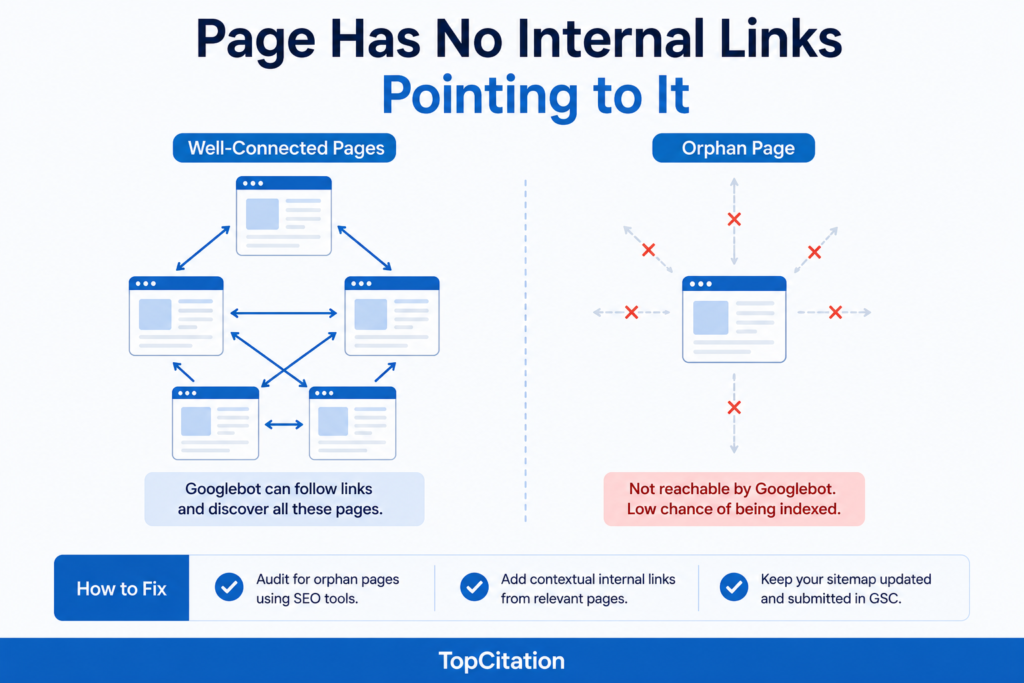
Imagine you built a room inside your house but never added a door to reach it. The room exists. Everything inside it is ready. But nobody can get in because there is no path leading to it. That is exactly what an orphan page is in SEO terms.
An orphan page is any page on your website that has zero internal links pointing to it from other pages on your site. No navigation link, no contextual link within a blog post, no footer link, nothing. It exists in complete isolation.
This creates a direct indexing problem because of how Googlebot actually moves through your website. Googlebot does not teleport to random URLs. It follows links. It starts at one page, reads it, finds links on that page, follows those links to new pages, reads those, finds more links, and keeps going. This process is called link-based crawl discovery and it is how the majority of your pages get found and crawled in the first place.
If no page on your site links to your new page, Googlebot has no path to reach it. Even if you submitted it in your sitemap -and you should -an orphan page sends a signal to Google that even your own website does not consider this page important enough to link to. That perception alone reduces the likelihood of it getting indexed and ranked.
This problem is more common than most people realize. It happens with blog posts that were published and never mentioned anywhere else on the site. It happens with new product pages added to an e-commerce store without being linked from any category page. It happens with landing pages created in a hurry for a campaign with no supporting internal links built around them.
A real example -an e-commerce store added 200 new product pages during a sale period. The pages were in the sitemap. But the category pages were never updated to include links to these new products. Six weeks later, fewer than 30 of those 200 pages had been indexed because Googlebot simply had no internal path to discover the rest.
How to fix it:
First, audit your site for orphan pages. Tools like Screaming Frog, Ahrefs Site Audit, or Semrush will show you a list of URLs that receive zero internal links. Once you identify them, add contextual internal links from your most relevant and frequently crawled pages. A link from a high-traffic blog post, a category page, or your homepage carries strong crawl signal. Also make sure your sitemap is always up to date and submitted in Google Search Console -it acts as a secondary discovery method when internal links are sparse.
4. Crawl Budget Is Being Wasted
Crawl budget is one of those SEO concepts that sounds technical and intimidating but is actually straightforward once you understand the core idea. And for larger websites especially, it is one of the most impactful factors affecting whether your new pages get indexed quickly or sit waiting for weeks.
Here is the simple version. Google does not have unlimited time or resources to crawl every page on every website every single day. So it allocates a specific crawl budget to each website -essentially a limit on how many pages Googlebot will crawl on your site within a given timeframe. This budget is determined by two things. First, your crawl rate limit, which is how fast Googlebot can crawl without overloading your server. Second, your crawl demand, which is how much Google actually wants to crawl your site based on its popularity and how frequently your content changes.
For a small blog with 50 pages this almost never matters. Google will crawl everything easily and quickly. But for a website with thousands or tens of thousands of URLs -like a large e-commerce store, a news site, or an enterprise platform -crawl budget becomes critically important. If Google is burning through your crawl budget on pages that have no SEO value, it never gets to your new important pages.
Here is what wastes crawl budget without most people realizing it. Faceted navigation on e-commerce sites creates thousands of filtered URL combinations like ?color=red&size=large&sort=price that are all essentially the same page with different parameters. Session IDs in URLs create duplicate versions of every page. Infinite scroll implementations can generate endless paginated URLs. Broken internal links force Googlebot to waste a crawl hit on a 404 page that gives nothing back. Low quality thin pages that exist purely for internal reasons and should never be crawled in the first place.
A real scenario -an e-commerce client had 4,000 genuinely important product pages but their site was generating over 200,000 crawlable URLs due to filter combinations in their navigation. Google was spending almost its entire crawl budget on these junk URLs and their new products were taking 6 to 8 weeks to get indexed. After cleaning up the parameter handling the same products started getting indexed within 3 to 5 days.
How to fix it:
Start by going to Google Search Console and checking the Crawl Stats report under Settings. This shows you how many pages Google crawls per day and what types of responses it is getting. If you see a large number of redirects, 404 errors, or non-canonical URLs being crawled, those are your budget leaks. Use the URL Parameters tool in GSC to tell Google how to handle faceted navigation parameters. Add noindex tags or canonical tags to low value pages. Fix broken internal links immediately. Block truly irrelevant sections using robots.txt only if those sections have zero indexing value. The goal is to make sure every crawl hit Google spends on your site lands on a page worth indexing.
📸 Image Suggestion: A pie chart style graphic showing a crawl budget being divided between “Valuable Pages” in green taking up a small slice and “Wasted Crawls” in red taking up the majority -with labels like “Duplicate Filter URLs,” “404 Pages,” “Redirect Chains” pointing to the red section.
5. Thin, Duplicate, or Low Quality Content
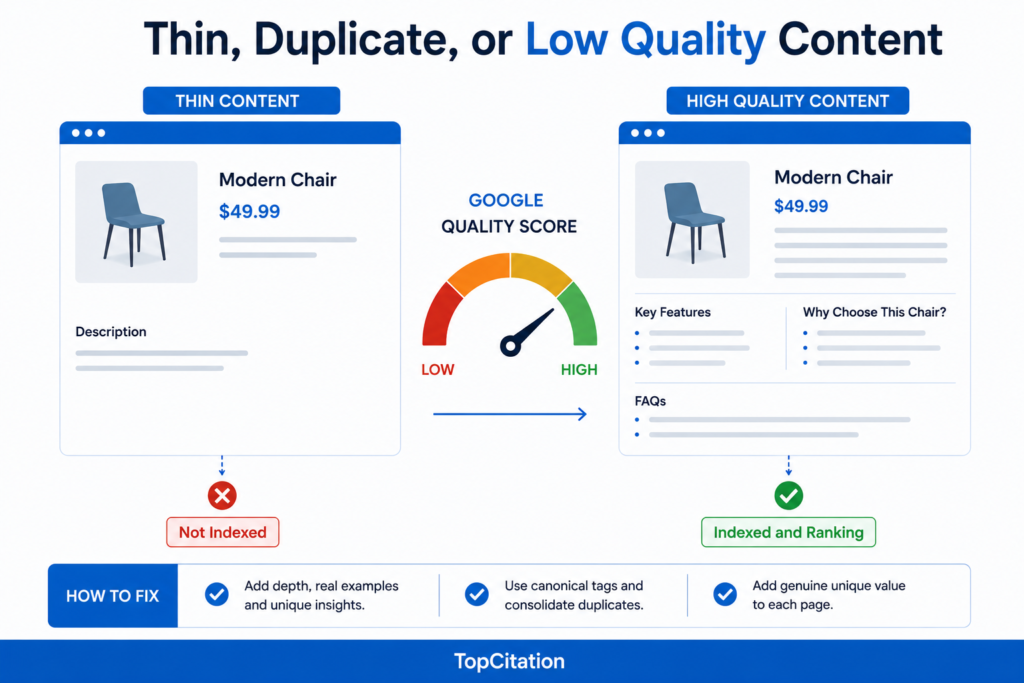
This is where Google stops being a technical gatekeeper and starts being a quality judge. And it is a judge with very high standards.
Google’s entire business model depends on showing users the most helpful, accurate, and valuable content available on the web. If your page does not clear that bar in Google’s eyes, it will not get indexed -or if it does get indexed briefly, it will eventually get dropped. This is not a penalty in the traditional sense. It is simply Google making an editorial decision that your page does not add enough value to deserve a spot in its database.
Let us break down what “low quality” actually means in concrete terms because it is not just about word count.
Thin content is when a page exists but has very little substance. A product page with only a product name, a price, and two lines of description is thin. A blog post that is 150 words and barely scratches the surface of the topic is thin. A location page that just swaps out a city name from a template and changes nothing else is thin. Google has seen billions of pages and it can recognize when a page was created for the sake of having a URL versus created to genuinely help a user.
Duplicate content is when the same content appears on multiple URLs either within your own site or copied from another source. This creates a situation where Google has to choose which version to index and rank, and often the result is that neither version gets strong indexing treatment. Internal duplication happens more often than people think -product pages with multiple URL variations, blog posts accessible through multiple category paths, printer-friendly versions of pages, HTTP and HTTPS versions both accessible without a proper redirect.
Auto-generated content is an increasingly common issue as AI writing tools become widespread. Pages filled with content that is technically grammatically correct but says nothing new, adds no unique perspective, and reads like it was written by someone who has never actually experienced the topic -Google’s quality systems are getting better at identifying this and choosing not to index it.
Here is a real example that illustrates this well. A travel website created 500 city guide pages using a template. Each page had the same structure, pulled in the same types of generic information, and offered nothing a user could not find on any other travel site. Despite being technically clean -good meta tags, proper canonicals, submitted sitemap -fewer than 80 of those 500 pages got indexed. The rest sat in “Crawled -currently not indexed” status for months because Google simply did not see enough unique value to bother.
How to fix it:
Audit your existing content honestly. Ask yourself -if I were searching for this topic and landed on this page, would I get a genuinely useful answer or would I immediately go back to Google and look elsewhere? If the answer is the latter, the page needs work before it deserves to be indexed. Add depth, real examples, original insights, and information that is not readily available on the first page of Google already. For duplicate content, implement proper canonical tags pointing to the preferred version and consolidate thin pages into stronger comprehensive ones. For templated pages, find ways to add genuine unique value to each individual page rather than just changing a few words.
6. Canonical Tag Pointing to Another URL
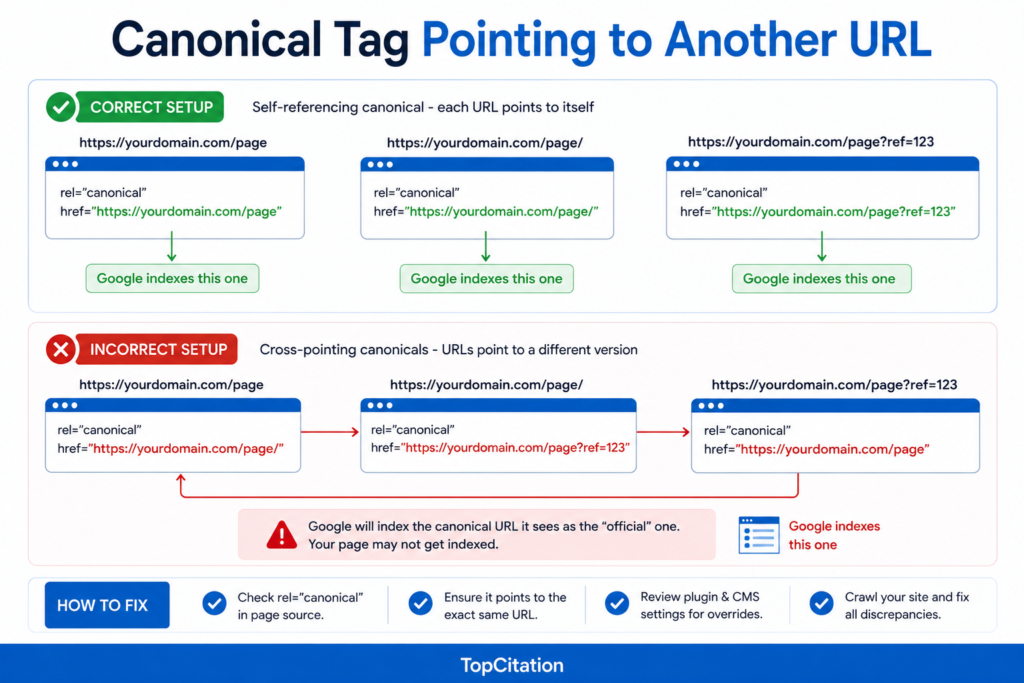
The canonical tag is one of the most powerful tools in technical SEO. It is also one of the most quietly destructive when it is set up incorrectly. A single wrong canonical tag can make an entire page invisible to Google without triggering any obvious error, warning, or alert -which is exactly what makes it so dangerous.
Here is what a canonical tag is and why it exists. When you have similar or identical content accessible through multiple URLs, Google needs to know which version is the “official” one that should be indexed and ranked. The canonical tag is how you communicate that. It sits inside your page’s HTML head section and looks like this:
<link rel=”canonical” href=”https://yourdomain.com/the-correct-page/” />
This tag tells Google -index this URL, not the one you are currently reading. When used correctly it consolidates ranking signals, prevents duplicate content issues, and keeps your index clean. When used incorrectly it tells Google to index a completely different page instead of the one you actually want ranked.
The most common mistake is a page pointing its canonical tag to a different URL entirely -either due to a copy-paste error, a CMS misconfiguration, or a template that was set up incorrectly and applied across hundreds of pages at once. Google sees the canonical, respects it as a strong hint, and chooses to index the canonicalized URL instead. Your page effectively disappears from the index because you told Google yourself that it should not be the preferred version.
There is another variation of this problem that trips up even experienced SEOs. Self-referencing canonicals that are almost correct but not quite. For example your page lives at https://yourdomain.com/blog/post-name/ but the canonical tag points to https://yourdomain.com/blog/post-name without the trailing slash. Or the canonical points to the HTTP version while the live site runs on HTTPS. These small inconsistencies create confusion and can result in the wrong version being indexed or the page not being indexed at all.
WordPress sites are especially vulnerable to canonical issues because of how themes and SEO plugins interact. If you use a page builder alongside an SEO plugin, there are scenarios where both attempt to output a canonical tag and you end up with two conflicting canonicals in your HTML head -something Google handles unpredictably.
A real scenario worth noting -an online magazine migrated from one CMS to another and during the migration their canonical tags were bulk-set to point to the old domain’s URLs. Over 1,200 pages were essentially voting for the old domain to be indexed instead of the new one. Traffic dropped nearly 70 percent before someone caught the issue in a routine technical audit three months later.
How to fix it:
Open any page you suspect has a canonical issue and view its source code. Search for rel=”canonical” and check exactly where it is pointing. It should point to the URL of the page you are currently on -nothing else, unless you intentionally want to consolidate it with another page. If you are using an SEO plugin like Yoast or Rank Math, check both the global settings and the individual page settings to ensure no overrides are happening. Run a full site crawl using Screaming Frog and export the canonical data to spot any pages where the canonical does not match the page URL. Fix discrepancies one by one or in bulk through your CMS depending on the scale of the issue.
7. Your Website Is Brand New
Google does not trust new websites immediately. It needs time to understand what your site is about, how consistent you are, and whether real people find your content useful.
If your domain is less than 3 to 6 months old, slow indexing is completely normal. Google is still building a trust profile for you. During this period even perfectly written, technically clean pages can sit unindexed for weeks.
What actually helps during this phase is getting your first few backlinks from credible sites, publishing consistently, building internal links between your pages, and making sure your sitemap is submitted in Google Search Console from day one.
Do not panic. Be patient. But also be active.
8. Sitemap Not Submitted or Has Errors
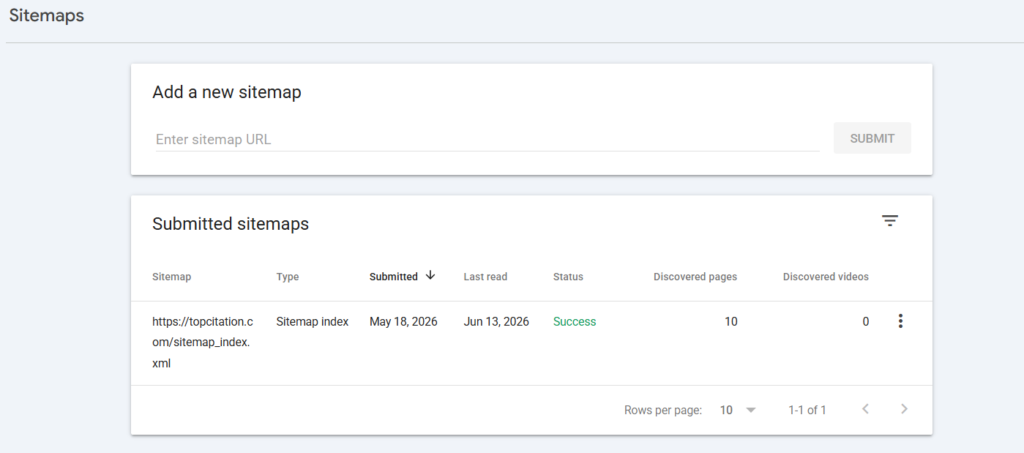
Your XML sitemap is basically a roadmap you hand directly to Google. It lists all the URLs you want indexed, how often they update, and which ones matter most. If that roadmap is missing, outdated, or full of wrong directions -Google wastes time figuring out your site on its own.
Three common sitemap problems that quietly kill indexing:
Not submitted at all. Surprising how often this happens. Especially with new sites or after a platform migration. Go to Google Search Console, open the Sitemaps section, and submit your sitemap URL right now if you have not already.
Sitemap includes noindex pages. This sends Google a contradictory signal -your sitemap says “index this” but the page says “do not index this.” Google gets confused and often skips the page entirely. Your sitemap should only contain URLs you genuinely want indexed.
Sitemap is outdated. New pages added but sitemap never regenerated. This is common on manually managed sites. If you use WordPress, plugins like Yoast or Rank Math auto-update your sitemap. Make sure that feature is enabled.
How to fix it: Go to Google Search Console, submit a fresh sitemap, and check the coverage report for any errors flagged against your sitemap URLs.
9. Page Speed Issues or Server Errors
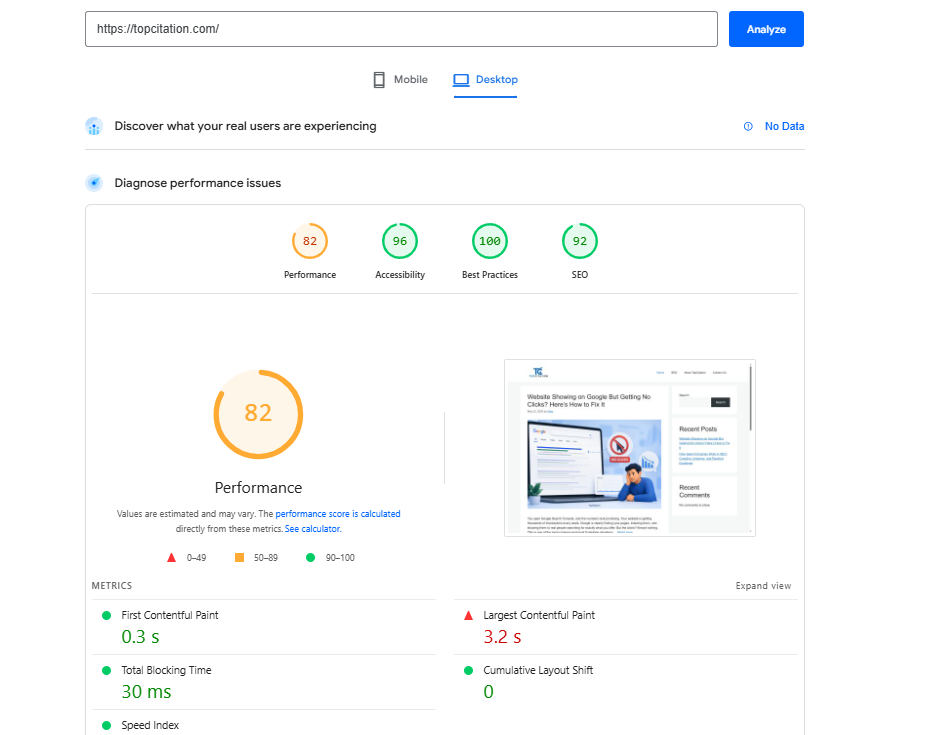
When Googlebot visits your site and your server responds slowly or throws errors, it does not wait around. It moves on and your page loses its crawl opportunity.
Two situations that directly hurt indexing:
Slow server response time. If your server takes more than a few seconds to respond, Googlebot shortens its crawl session on your site. This means fewer pages get crawled per visit. On a large site this can leave hundreds of new pages sitting in the crawl queue indefinitely.
5xx server errors. A 500 or 503 error tells Googlebot your server is unavailable. If Google hits these errors repeatedly on a URL, it starts crawling that URL less frequently. If a new page throws a 503 on its first few crawl attempts, Google may not come back for weeks.
The fix is straightforward. Use Google Search Console’s Crawl Stats report to check how your server is responding to Googlebot. Look for spikes in response time and any 5xx errors. Fix hosting issues, upgrade your server plan if needed, enable caching, and use a CDN to reduce load time.
A quick win -run your site through Google PageSpeed Insights and fix the critical issues flagged there. Faster server response directly improves how often and how deeply Google crawls your site.
10. JavaScript Rendering Problems
This one catches a lot of modern websites off guard. If your site is built on React, Vue, Angular, or any JavaScript-heavy framework -or if your content loads dynamically after the initial page load -Google may not be seeing what you think it is seeing.
Here is why. Googlebot crawls in two waves. First it downloads your raw HTML instantly. Then it comes back later to render the JavaScript -sometimes days or even weeks later. If your main content, internal links, or meta tags only appear after JavaScript executes, Google is essentially seeing a blank or incomplete page on that first visit.
The result is a page that either does not get indexed or gets indexed without its most important content -which means it will never rank for anything meaningful.
Three signs your site has a JavaScript indexing problem. Your pages show up in Google Search Console as crawled but not indexed. The Google URL Inspection tool shows a rendered page that looks different from what users see. Your internal links are not being followed because they are generated dynamically by JavaScript.
How to fix it: Use the URL Inspection tool in Google Search Console and click “View Crawled Page.” Switch to the screenshot tab. If the page looks empty or broken, JavaScript rendering is your problem. The best long term solution is server side rendering or static site generation so Google gets fully built HTML on the first visit without waiting for JavaScript to execute.
11. Mobile Usability Problems
Google switched to mobile-first indexing in 2023 completely. This means Google now uses the mobile version of your page as the primary version for crawling, indexing, and ranking. The desktop version is secondary.
If your page has serious mobile usability issues, Google may choose not to index it at all -or index a degraded version that struggles to rank.
Common mobile issues that directly impact indexing:
Content hidden on mobile. If you hide certain text, sections, or links on mobile using CSS display none, Google may not count that content at all since mobile is now the primary version it reads.
Blocked resources on mobile. If your mobile version blocks CSS or JavaScript files that are essential for rendering, Googlebot cannot build a complete picture of your page.
Interstitials and popups. Large intrusive popups that cover the main content on mobile are a direct negative signal. Google has explicitly said these hurt mobile page experience.
Different content on mobile vs desktop. If your mobile version has significantly less content than your desktop version, Google indexes the thinner mobile version -which weakens your rankings.
How to fix it: Open Google Search Console and check the Mobile Usability report under Experience. Fix every error flagged there. Also use Google’s Mobile Friendly Test tool to see exactly how Googlebot views your page on mobile. Make sure your mobile and desktop versions have the same content and the same internal links.
12. Manual Penalty or Search Quality Issue
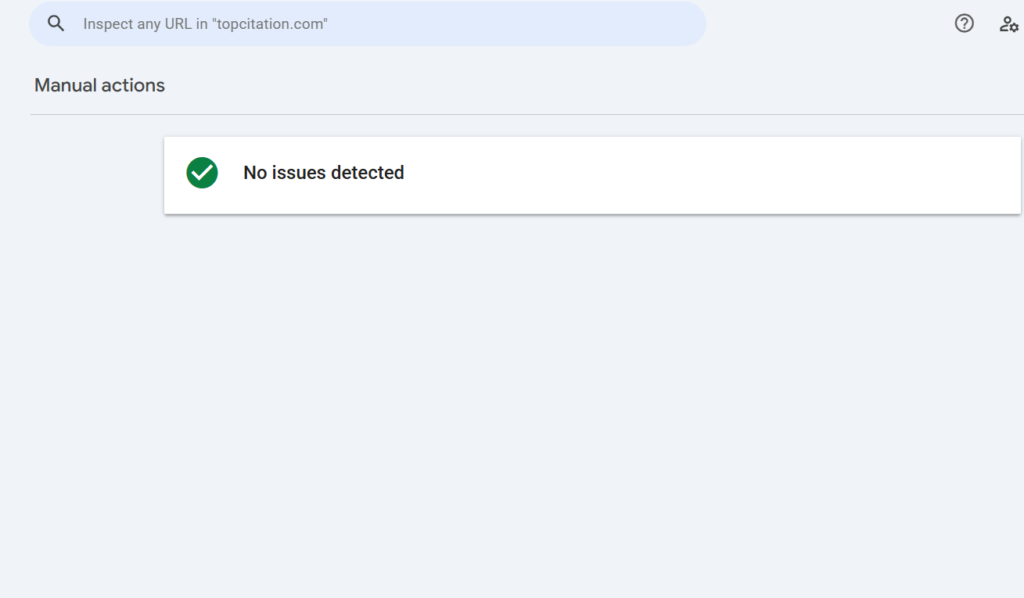
This is the most serious reason on this list. A manual action means a real human reviewer at Google has looked at your site and decided it violates Google’s webmaster guidelines. Unlike algorithmic filters that happen automatically, a manual action is a deliberate decision made by Google’s search quality team.
When a manual action is applied, affected pages either drop significantly in rankings or get removed from the index entirely. And unlike every other issue on this list, you cannot fix this with a technical tweak. You need to identify what violated the guidelines, fix it completely, and then submit a reconsideration request to Google.
Common reasons sites receive manual actions:
Unnatural backlinks. Buying links, participating in link schemes, or having a sudden spike of spammy backlinks pointing to your site.
Thin or spammy content at scale. Hundreds of auto-generated pages, scraped content, or doorway pages created purely to manipulate rankings.
Hidden text or cloaking. Showing different content to Google than what users see -a direct violation that Google takes very seriously.
User generated spam. If your site has a comments section or forum that has been flooded with spammy content and you have not moderated it.
The good news is Google always notifies you. If your site has a manual action you will see it clearly in Google Search Console under Security and Manual Actions. If nothing appears there your indexing problem is not a manual penalty -go back through the previous reasons on this list.
How to fix it: Read the manual action notice carefully in GSC. It tells you exactly what the issue is. Fix every instance of the violation across your entire site -not just the flagged pages. Then submit a reconsideration request through GSC explaining what you found and what you did to fix it. Google typically responds within a few weeks.
Related Post: How Search Engines Work in SEO: Crawling, Indexing, and Ranking Explained
How to Diagnose Why Your Page Is Not Indexed
Stop guessing. Use these four steps in order and you will find the problem in under 10 minutes.
Step 1 -Run the URL Inspection Tool
Go to Google Search Console. Paste your page URL into the top search bar and hit enter. This single tool tells you everything -whether the page is indexed, when it was last crawled, what canonical Google selected, and whether any blocking issues exist. This is always your first stop.
Step 2 -Check Your Coverage Report
In GSC go to Pages under the Indexing section. Here you will see exactly how Google has categorized all your URLs. Look for statuses like “Crawled -currently not indexed,” “Discovered -currently not indexed,” or “Excluded by noindex.” Each status points directly to a specific problem and its fix.
Step 3 -Do a Quick Site Search
Go to Google and type site:yourdomain.com/your-page-url. If the page appears your indexing is fine and your problem is ranking not indexing. If nothing appears the page is not in Google’s index at all and you need to dig deeper.
Step 4 -Crawl Your Site
Use Screaming Frog or Ahrefs Site Audit to crawl your site. Look for noindex tags, canonical mismatches, orphan pages, and blocked URLs. These tools surface technical issues that GSC sometimes does not highlight clearly.
How to Use Google Search Console to Request Indexing
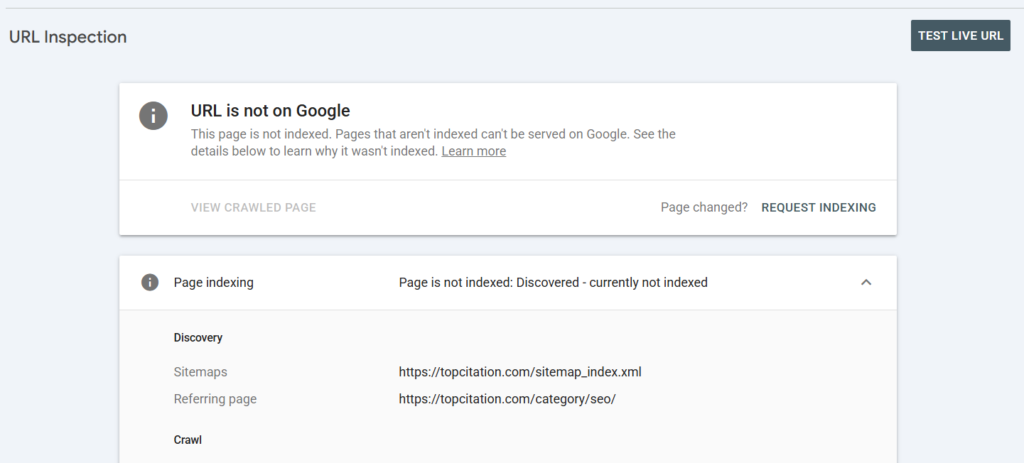
Once you have fixed the underlying issue, you need to tell Google to come back and re-evaluate your page. Here is exactly how to do it.
Step 1 -Open URL Inspection
Go to Google Search Console and paste your page URL into the inspection bar at the top. Wait for GSC to fetch the current status of your page.
Step 2 -Click Request Indexing
Once the inspection loads, click the “Request Indexing” button. Google will run a quick live test on your page and then add it to the priority crawl queue. This does not guarantee immediate indexing but it significantly speeds up the process.
Step 3 -Verify the Fix First
This step is critical and most people skip it. Before requesting indexing make absolutely sure the issue is actually fixed. Requesting indexing on a page that still has a noindex tag or a canonical problem is completely pointless. GSC will crawl it, find the same issue, and nothing will change.
One Important Limitation
Google limits how many indexing requests you can submit per day. Do not waste them on pages that are not ready. Prioritize your most important pages first.
After You Submit
Google typically processes the request within a few days to a couple of weeks depending on your site’s crawl priority. Check back using the URL Inspection tool to see if the indexed status has changed.
How Long Does Google Take to Index a New Page
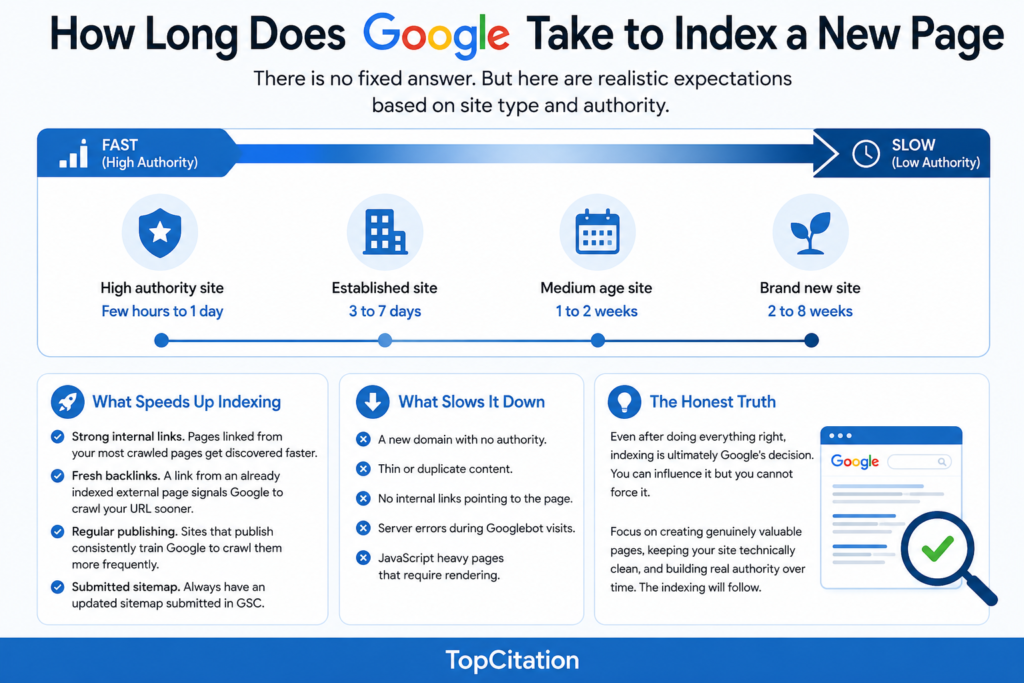
There is no fixed answer. But here are realistic expectations based on site type and authority.
| Site Type | Average Indexing Time |
| High authority site | Few hours to 1 day |
| Established site | 3 to 7 days |
| Medium age site | 1 to 2 weeks |
| Brand new site | 2 to 8 weeks |
What Speeds Up Indexing
Strong internal links. Pages linked from your most crawled pages get discovered faster.
Fresh backlinks. A link from an already indexed external page signals Google to crawl your URL sooner.
Regular publishing. Sites that publish consistently train Google to crawl them more frequently.
Submitted sitemap. Always have an updated sitemap submitted in GSC.
What Slows It Down
A new domain with no authority. Thin or duplicate content. No internal links pointing to the page. Server errors during Googlebot visits. JavaScript heavy pages that require rendering.
The Honest Truth
Even after doing everything right, indexing is ultimately Google’s decision. You can influence it but you cannot force it. Focus on creating genuinely valuable pages, keeping your site technically clean, and building real authority over time. The indexing will follow.
Pre-Publish Indexing Checklist
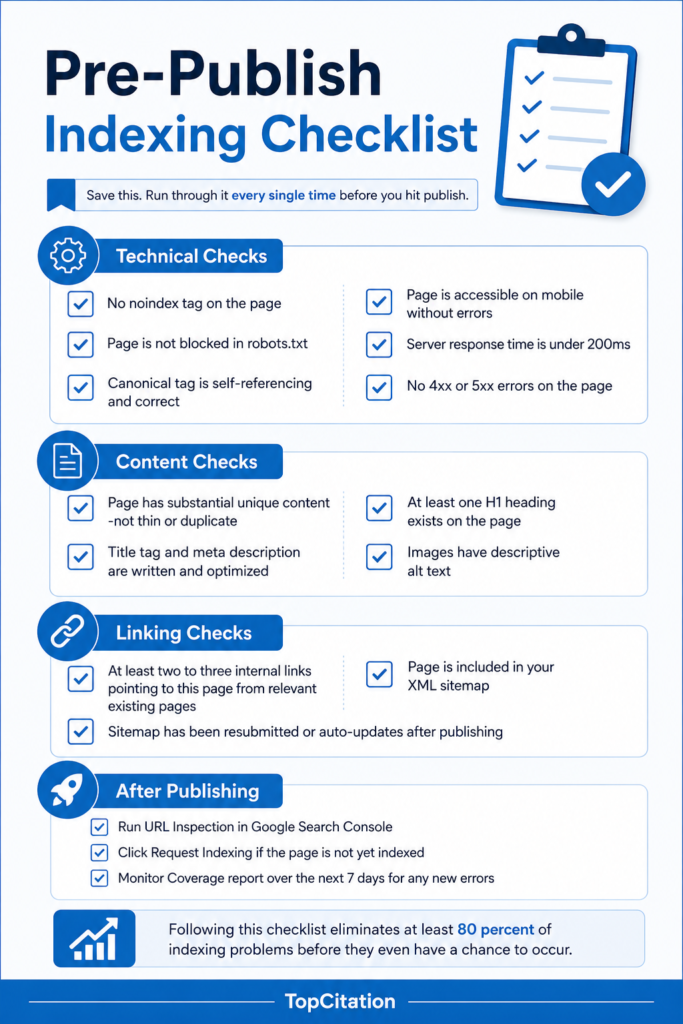
Save this. Run through it every single time before you hit publish.
Technical Checks
✅ No noindex tag on the page
✅ Page is not blocked in robots.txt
✅ Canonical tag is self-referencing and correct
✅ Page is accessible on mobile without errors
✅ Server response time is under 200ms
✅ No 4xx or 5xx errors on the page
Content Checks
✅ Page has substantial unique content -not thin or duplicate
✅ Title tag and meta description are written and optimized
✅ At least one H1 heading exists on the page
✅ Images have descriptive alt text
Linking Checks
✅ At least two to three internal links pointing to this page from relevant existing pages
✅ Page is included in your XML sitemap
✅ Sitemap has been resubmitted or auto-updates after publishing
After Publishing
✅ Run URL Inspection in Google Search Console
✅ Click Request Indexing if the page is not yet indexed
✅ Monitor Coverage report over the next 7 days for any new errors
Following this checklist eliminates at least 80 percent of indexing problems before they even have a chance to occur.
Common Mistakes That Kill Indexing
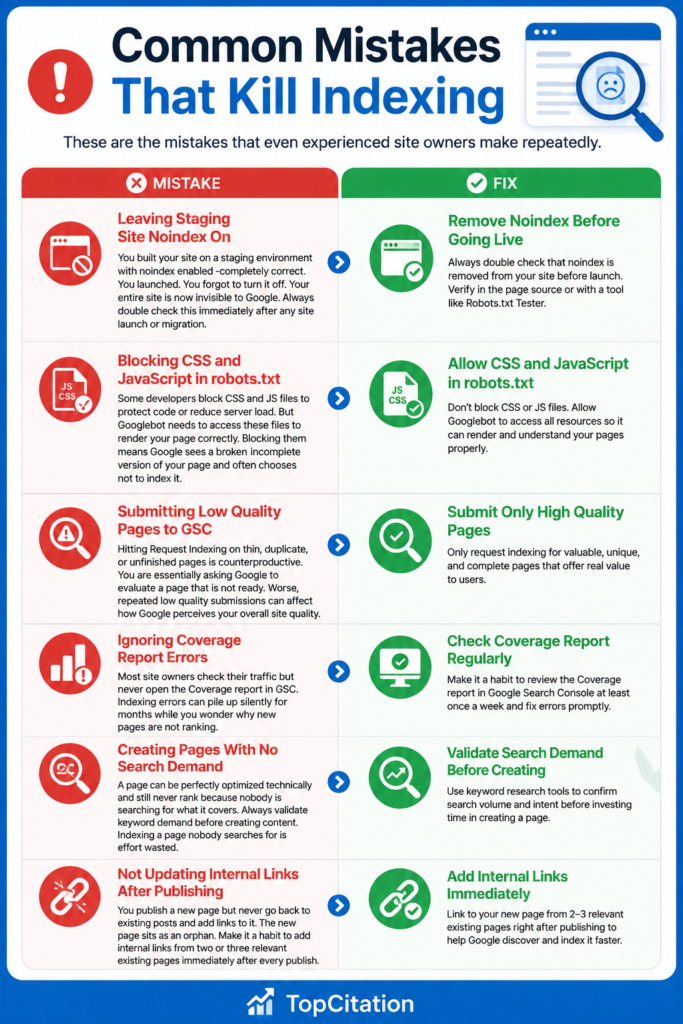
These are the mistakes that even experienced site owners make repeatedly.
Leaving Staging Site Noindex On
You built your site on a staging environment with noindex enabled -completely correct. You launched. You forgot to turn it off. Your entire site is now invisible to Google. Always double check this immediately after any site launch or migration.
Blocking CSS and JavaScript in robots.txt
Some developers block CSS and JS files to protect code or reduce server load. But Googlebot needs to access these files to render your page correctly. Blocking them means Google sees a broken incomplete version of your page and often chooses not to index it.
Submitting Low Quality Pages to GSC
Hitting Request Indexing on thin, duplicate, or unfinished pages is counterproductive. You are essentially asking Google to evaluate a page that is not ready. Worse, repeated low quality submissions can affect how Google perceives your overall site quality.
Ignoring Coverage Report Errors
Most site owners check their traffic but never open the Coverage report in GSC. Indexing errors can pile up silently for months while you wonder why new pages are not ranking.
Creating Pages With No Search Demand
A page can be perfectly optimized technically and still never rank because nobody is searching for what it covers. Always validate keyword demand before creating content. Indexing a page nobody searches for is effort wasted.
Not Updating Internal Links After Publishing
You publish a new page but never go back to existing posts and add links to it. The new page sits as an orphan. Make it a habit to add internal links from two or three relevant existing pages immediately after every publish.
Conclusion
Google not indexing your pages is frustrating. But it is never random. There is always a reason and almost always a fix.
The most important thing to take away from this guide is this -indexing problems are almost always either a technical issue, a content quality issue, or a discovery issue. Fix the right one and Google will follow.
Start with Google Search Console. It tells you more than any third party tool. Check your Coverage report, run the URL Inspection tool, and look for patterns in the errors. From there work through the checklist in this guide methodically. Do not try to fix everything at once. Identify the most likely cause for your specific situation and address it first.
If you are on a new site -be patient but stay active. Publish consistently, build internal links, earn your first backlinks, and keep your technical foundation clean. Trust builds over time and indexing speed improves with it.
If you are on an established site and suddenly seeing indexing drops -something changed. A plugin update, a migration, a bulk content change, or an accidental robots.txt edit. Go back to basics and audit everything systematically.
The websites that win in organic search long term are not the ones chasing shortcuts. They are the ones that build technically sound, genuinely helpful, well-linked content consistently over time. Indexing takes care of itself when those fundamentals are in place.
Now a question for you -which of these 12 reasons turned out to be the culprit on your site? Drop it in the comments. It might help someone else diagnose their problem faster.
Frequently Asked Questions
Q1. Why is my new page not showing up on Google?
Your page is either blocked by a noindex tag, not linked internally, has thin content, or Google simply has not crawled it yet. Run the URL Inspection tool in GSC to find the exact reason.
Q2. How long does Google take to index a new page?
Anywhere from a few hours on high authority sites to several weeks on new domains. Average for most established sites is 3 to 7 days.
Q3. Does requesting indexing in GSC speed things up?
Yes but only if the underlying issue is already fixed. Requesting indexing on a broken page changes nothing.
Q4. Can too many pages hurt my indexing?
Yes. Low quality pages waste your crawl budget and slow down indexing of your important pages. Quality always beats quantity.
Q5. Does page speed affect indexing?
Slow servers reduce how many pages Googlebot crawls per visit. Faster sites get crawled more thoroughly and more frequently.